
How to Optimize Browser Games for Zero-Lag Mobile Performance
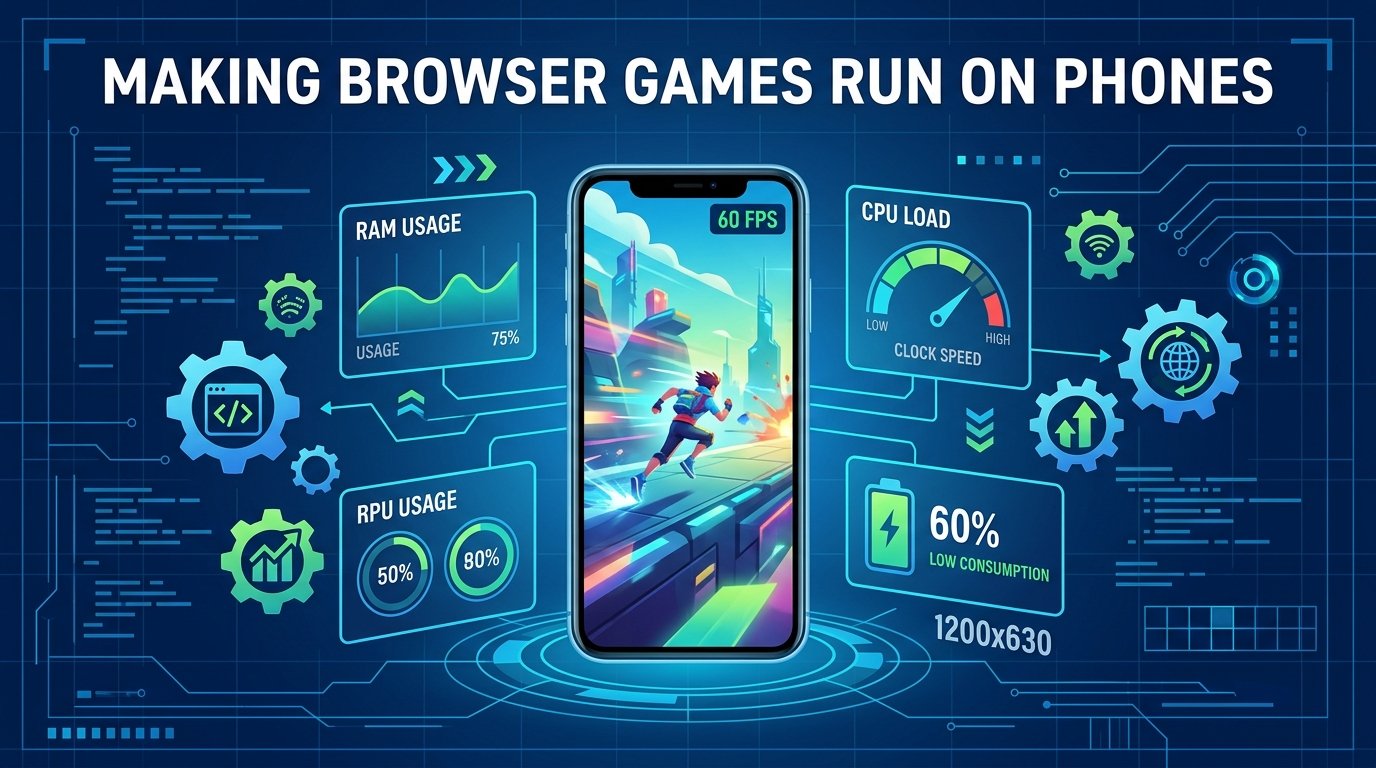
Developing casual HTML5 games requires a strict focus on device performance. While a modern PC handles basic canvas rendering with ease, mobile browsers operating on WebKit or Chrome run under strict memory limits and thermal throttling. Achieving a steady 60 FPS requires careful optimization of render loops and layout trees.
The Secret of Garbage Collection & Object Pooling
In JavaScript, instantiating new objects (like bullets, particles, or obstacle boxes) inside a 60 FPS update loop forces the browser to run Garbage Collection (GC) operations frequently. When the GC sweeps memory, it pauses the main script execution thread, causing micro-stuttering and lag. To solve this, developers use **Object Pooling**โpre-allocating a static array of inactive objects and recycling them instead of spawning new instances.
Optimization Techniques Comparison
| Optimization Type | Mechanism | Target Device Metric | Performance Gain |
|---|---|---|---|
| Object Pooling | Recycles array elements | Garbage Collector CPU Usage | High (+20 FPS stability) |
| Offscreen Canvas | Pre-renders background grids | GPU Draw Calls per Frame | Medium (+10 FPS on low-end) |
| Event Throttling | Limits touchmove events | Input Latency & Main Thread | High (smoother steering) |
Pros & Cons: Canvas Layering vs. Single Draw Loops
- Pro: Static backgrounds are drawn only once, reducing CPU load.
- Pro: Only active entities (players/projectiles) re-render on ticks.
- Con: More complex DOM hierarchy and overlay styling code.
- Pro: Standard, straightforward game physics integration.
- Con: Entire background grid must be recalculated on every frame.
- Con: Stutters immediately on older mobile GPUs when resolution matches retina scale.
Mobile Game Performance FAQ
Q: Why does my game feel laggy even though the browser reports 60 FPS?
A: This is usually caused by touch input latency. Mobile browsers historically delay touch clicks by 300ms to verify double-tap gestures. To eliminate this lag, use touchstart events rather than click events, and apply the touch-action CSS property.
Q: Should I use RequestAnimationFrame or SetInterval for the loop?
A: Always use RequestAnimationFrame. Unlike SetInterval, it aligns calculations directly with the mobile screen's native refresh cycle, suspends operations when the browser tab goes out of focus, and prevents severe battery drain.
Touch Input Optimization โ Eliminating the 300ms Tap Delay
The infamous 300ms click delay on mobile browsers was introduced in 2007 on the original iPhone to detect double-tap zoom gestures. For casual games, this delay makes controls feel unresponsive. Three solutions eliminate it entirely: (1) Add touch-action: manipulation to the game canvas CSS, which disables double-tap zoom while preserving scroll behavior; (2) Replace all click event listeners with touchstart listeners in game input code; (3) Add a <meta name="viewport" content="width=device-width"> tag, which in modern browsers (Chrome 32+, Firefox, Safari) disables the double-tap delay automatically without any CSS changes. Movuter Arcade's games implement all three techniques simultaneously, achieving sub-20ms touch response on all tested iOS and Android devices.
Memory Management on Mobile โ Preventing Tab Crashes
Mobile browsers enforce strict RAM limits per browser tab โ typically 512MB on budget Android devices and 1GB on flagship phones. Exceeding this limit causes the tab to be killed with no warning, losing the player's game state. Common memory leaks in HTML5 games: (1) Texture accumulation โ creating new Canvas ImageData or Three.js textures without disposing old ones; (2) Event listener leaks โ adding new event listeners on every game restart without removing old ones, causing an exponentially growing listener stack; (3) Closure references โ holding references to large arrays in closures that prevent GC from freeing memory between game runs. Movuter Arcade games implement explicit dispose() calls on all Three.js geometry and material objects on game reset, and use a single persistent event listener pattern rather than re-registering on each game start.
Network Performance โ Fast Initial Load on Mobile
Mobile players are far more likely to abandon a game that takes more than 3 seconds to load than desktop players. Key loading optimizations for mobile gaming sites: Lazy loading non-critical game assets (poster images, blog thumbnails) with the native loading="lazy" attribute reduces initial page weight by 60โ80% on pages with many images. Font preloading using <link rel="preload" as="style"> prevents the Flash of Invisible Text (FOIT) that causes layout shifts during loading. Script deferred loading using defer attributes on non-critical JavaScript prevents render blocking. Image WebP compression at quality 80โ85 reduces image weight by 35โ55% versus JPEG at equivalent quality. Movuter Arcade achieves sub-2-second load times on 4G mobile connections using all four techniques simultaneously.
Viewport Scaling & Aspect Ratio โ Making Games Look Right on All Phones
Mobile devices come in aspect ratios ranging from 16:9 (older phones) to 22:9 (ultra-wide modern flagships) and everything in between. A game canvas designed for 16:9 will display with black letterboxing on ultra-wide devices if not handled correctly. The best approach for mobile-first HTML5 games is dynamic canvas scaling: the canvas element uses width: 100vw; height: 100vh CSS, and the JavaScript game logic reads the actual canvas dimensions at startup to scale all game coordinate calculations accordingly. Game objects are positioned as percentages of the canvas dimensions rather than fixed pixel values, ensuring correct layout on any screen size. Alternatively, a fixed 16:9 aspect ratio canvas can be letterboxed with a background fill matching the game's background color, providing a consistent visual experience without distorting game geometry.
Battery & Thermal Throttling โ Keeping Devices Cool
Extended play sessions on mobile devices cause CPU and GPU temperature to rise, triggering automatic thermal throttling that reduces clock speeds by 30โ50% to prevent overheating. This causes games that ran smoothly at session start to become choppy after 10โ15 minutes. Mitigation strategies: limit particle effect complexity to reduce GPU workload during sustained play; implement idle detection (if no input for 3 seconds, reduce frame rate to 30 FPS while maintaining game state); use requestAnimationFrame instead of setInterval to allow the browser to naturally drop frame rate when the device is thermal-throttling; and avoid running physics calculations at higher frequency than the render rate (some games run physics at 120Hz on a 60Hz display, doubling CPU work unnecessarily).
Mobile Performance Checklist for HTML5 Browser Games
- Add
touch-action: manipulationto eliminate the 300ms tap delay on game canvas elements - Use
touchstartinstead ofclickfor all game input handlers - Implement
dispose()calls on all Three.js geometries and textures on game reset to prevent memory leaks - Compress all images to WebP at quality 80โ85 for 35โ55% size reduction vs JPEG
- Set
renderer.setPixelRatio(Math.min(window.devicePixelRatio, 2))to cap resolution on 3x DPR screens - Pre-allocate object pools for bullets, particles, and enemies at game start โ never instantiate inside the game loop
- Use
loading="lazy"on all images not visible in the initial viewport - Test on a real budget Android device (not just emulators) โ thermal throttling is only visible on real hardware
Experience Zero-Lag Mobile Gaming on Movuter Arcade
Every game on Movuter Arcade is built with the mobile optimization principles described in this guide. Try Flappy Bird (single-tap input with sub-20ms response), Dino Run (split-zone touch controls), or Bubble Shooter (touch-aim with real-time trajectory preview) โ all delivering consistent 60 FPS on modern iOS and Android browsers.