
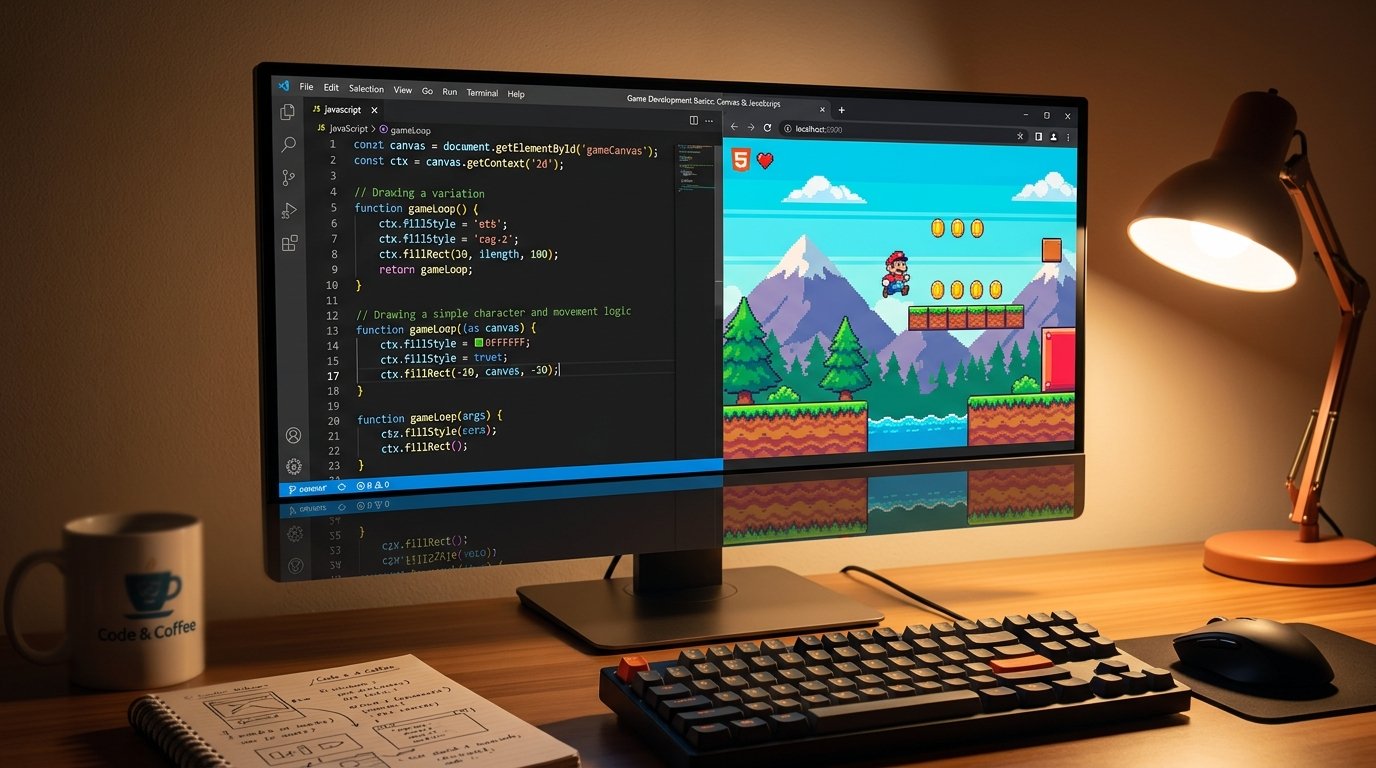
Game Development Basics: HTML5 Canvas & JavaScript
I remember when making a game meant downloading gigabytes of clunky software, fighting with licenses, and spending hours just trying to get a square to show up on the screen. Honestly, it was exhausting. But nowadays? The most powerful game dev tool you own is probably the browser you're reading this on. If you know a little HTML and JavaScript, you can build games that run perfectly on a phone or a desktop without anyone having to install an app. And the secret sauce making it all work is the HTML5 <canvas> element. Let me walk you through how I usually set things up when I'm prototyping a new idea.
Getting the Canvas Going (And the Game Loop)
The <canvas> tag is exactly what it sounds like—a blank canvas. But HTML can't draw on it. You need JavaScript to grab the "rendering context" (usually '2d') so you can start painting rectangles and images pixel by pixel.
But a game isn't a painting; it's a flipbook. You have to clear the canvas and redraw everything super fast to create the illusion of motion. Please, I am begging you, do not use setInterval() for this. Use requestAnimationFrame(). It syncs up with your monitor's refresh rate (usually 60 or 144 times a second) so everything looks buttery smooth. Plus, it automatically pauses if the user switches tabs, which stops their laptop fans from spinning up like a jet engine.
Drawing Things (Sprites)
You can draw basic shapes with code, but let's be real—most games use actual art. Drawing an image to the canvas is super easy with the drawImage() method.
The pro move here is using a sprite sheet. Instead of loading 20 different pictures of a character running, you load one big image that has all 20 frames on it. You just tell the canvas to clip out the little rectangle for frame 1, then on the next tick of the game loop, clip out frame 2. It keeps your game loading fast and saves you a massive headache trying to manage a folder full of tiny PNGs.
Collisions: AABB vs Circles
Moving a character is fun, but eventually, they have to hit a wall or grab a coin. That's collision detection. If you're building a platformer, you're going to use Axis-Aligned Bounding Box (AABB) collision. It's a fancy way of saying "checking if two non-rotated rectangles are overlapping." It's just a simple if statement checking the X and Y coordinates. If all the edges overlap, boom, you hit something.
But AABB sucks for round things like asteroids. The invisible corners of the rectangle will hit things when the circle itself hasn't touched them yet. For that, you have to dust off the Pythagorean theorem you learned in high school math. Calculate the distance between the centers of the two circles. If the distance is less than their combined radii, they've collided. It takes a tiny bit more brainpower for the CPU, but it looks so much better.
Faking Physics
Don't just change a character's X and Y coordinates directly. It looks stiff and terrible. Give them a velocityX and velocityY instead. Every frame, you add the velocity to their position.
Want gravity? Just pick a small number (like 0.5) and add it to their velocityY every single frame. When they jump, set their velocity to a negative number, and the gravity will naturally pull them back down in a perfect arc. Want them to slide to a stop? Just multiply their horizontal velocity by 0.9 when they aren't holding a key. It's surprisingly easy to make movement feel good with just basic math.
The Delta Time Lifesaver
This is the one thing that trips up every beginner. If you tell a character to move 5 pixels per frame, they will move way faster on a 144Hz gaming monitor than on a standard 60Hz monitor because the game loop is firing more than twice as fast. Your game is basically broken for half your players.
You fix this with Delta Time (dt). It measures exactly how many milliseconds passed since the last frame. Instead of moving 5 pixels per frame, you move, say, 300 pixels per second, and multiply it by Delta Time. If a frame takes longer to render, Delta Time is bigger, so the character moves slightly further that frame. It forces the game to run at the exact same speed on a potato laptop as it does on a $3,000 gaming rig.
Handling the Keyboard
Last tip: don't put your movement code directly inside a keydown event listener. The operating system has built-in delays when you hold a key down (like when you hold 'A' in a word doc and it pauses before going AAAAAAAAA). Make a simple object that tracks if a key is currently down (true) or up (false). Then, in your main game loop, just check the status of that object. It makes jumping and running at the same time feel totally seamless.
Quick FAQs
What even is the Canvas?
It's basically an HTML tag that gives JavaScript a blank box to draw pictures inside of.
Why requestAnimationFrame?
It makes your game run smoothly at the monitor's refresh rate and saves battery when you switch tabs.
Do I really need Delta Time?
Yes. Unless you want your game running in fast-forward on high-end monitors, you absolutely need it.
See It In Action
Want to see how these physics and game loops actually feel? Go play around with some of these. Play Tetris, Play Snake, Play Brick Breaker